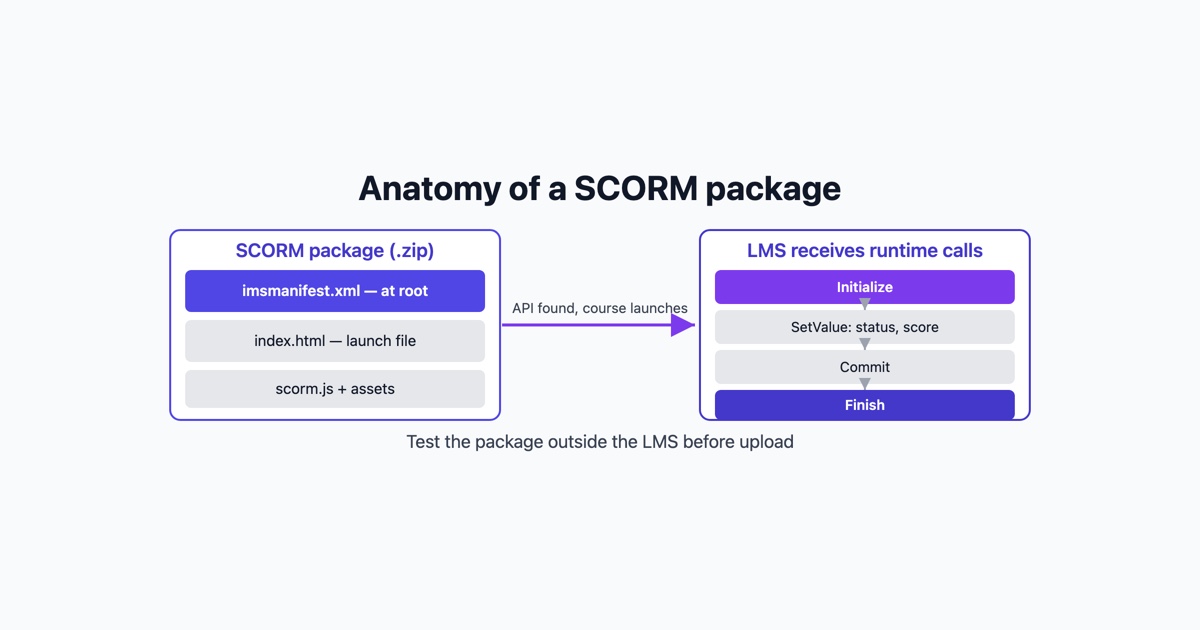
A SCORM file is less mysterious than the upload screen of most LMSs makes it look. It is a zip archive with a web page inside, a small XML file that tells the LMS what the page is, and a few lines of JavaScript that let the page report back. Once you know which of those three parts your content is missing, choosing how to build the package gets much easier.
What the LMS expects to find in the zip
The specification calls the zip a package interchange file. Whatever tool produced it, the LMS looks for the same things.
imsmanifest.xml, at the root of the zip. Not in a folder inside it. This is a common reason an upload is rejected with a message about a missing manifest: somebody right-clicked the course folder and compressed it, so the zip contains course/imsmanifest.xml instead of imsmanifest.xml.
A launch file, usually an HTML page, named in the manifest. When a learner opens the course, the LMS loads this page, normally in a frame or a new window.
Everything the launch file needs: scripts, stylesheets, images, video, fonts. Paths are relative to the package, so nothing should point at a file on your own machine.
Here is a minimal SCORM 1.2 manifest for a course with one page:
<?xml version="1.0" encoding="UTF-8"?>
<manifest identifier="com.example.fire-safety" version="1.0"
  xmlns="http://www.imsproject.org/xsd/imscp_rootv1p1p2"
  xmlns:adlcp="http://www.adlnet.org/xsd/adlcp_rootv1p2">
  <metadata>
    <schema>ADL SCORM</schema>
    <schemaversion>1.2</schemaversion>
  </metadata>
  <organizations default="org1">
    <organization identifier="org1">
      <title>Fire safety basics</title>
      <item identifier="item1" identifierref="res1">
        <title>Fire safety basics</title>
      </item>
    </organization>
  </organizations>
  <resources>
    <resource identifier="res1" type="webcontent" adlcp:scormtype="sco" href="index.html">
      <file href="index.html"/>
      <file href="scorm.js"/>
    </resource>
  </resources>
</manifest>
The organization is the course structure the LMS shows the learner. The resource is the actual content, and href on it is the launch file. adlcp:scormtype="sco" says this resource talks to the LMS; a resource marked asset is just a file that does not. A SCORM 2004 manifest has the same skeleton with different namespaces, a schemaversion such as 2004 4th Edition, and the attribute spelled adlcp:scormType with a capital T. Which version to target is a separate question with its own trade-offs; if you have no reason to choose, SCORM 1.2 is the most widely supported.
The runtime calls
The manifest gets the course into the LMS. The JavaScript is what gets a completion back out. When the LMS launches a SCO it provides an API object in a parent window, and the course has to find it and call it. In SCORM 1.2 the object is named API; in 2004 it is API_1484_11, and the method names change accordingly.
A SCORM 1.2 course that marks itself complete does roughly this:
function findAPI(win) {
  while (win) {
    if (win.API) return win.API;
    if (win.parent === win) break;
    win = win.parent;
  }
  return window.opener ? window.opener.API : null;
}

var api = findAPI(window);

api.LMSInitialize("");
var status = api.LMSGetValue("cmi.core.lesson_status");
// ... the learner works through the content ...
api.LMSSetValue("cmi.core.score.raw", "85");
api.LMSSetValue("cmi.core.lesson_status", "passed");
api.LMSCommit("");
api.LMSFinish("");
The search for the API is simplified here (production wrappers also walk the opener’s parents and give up after a set number of levels), but the sequence is the real one. Initialize first, read and write values, commit, finish. The SCORM 2004 equivalents are Initialize, GetValue, SetValue, Commit and Terminate, and 2004 splits the single status into cmi.completion_status and cmi.success_status. A course that never calls initialize, or closes without finishing, is the usual cause of an LMS showing “not attempted” for somebody who sat through every page.
Route one: an authoring tool
If you are building a course from scratch, with quizzes, branching or interactions, an authoring tool writes all of the above for you and you never touch the manifest. The commercial ones are Articulate Storyline and Rise, Adobe Captivate and iSpring Suite. Free and open-source options exist too: eXeLearning and the Adapt framework both export SCORM packages.
The publish step is where people go wrong, not the authoring. Each tool asks a few questions on export that decide how the course reports:
- The SCORM version, 1.2 or 2004.
- What counts as complete: viewing a number of slides, passing the quiz, or both.
- Whether a pass reports as “passed” or “completed”. Some LMS reports only look at one of them, so check what yours reads before picking.
Write those choices down. Six months later, when a learner’s record looks wrong, they are the first thing anyone will ask about.
Route two: wrap HTML or video you already have
Sometimes the content already exists as a web page, an HTML5 export from another tool, or an MP4. You do not need to rebuild it; you need to put it in a package and give it a way to report.
For HTML, the minimum is the manifest above, your files beside it, and a small script that finds the API, initializes, and sets a status. When to set it is the decision that matters. Setting “completed” the moment the page loads is easy and honest only if opening the page is genuinely all the learner has to do. If there is a last page, set it there.
For video, the launch file is an HTML page holding a <video> element, and the script listens for the video’s ended event before setting the status to completed. Some teams set it at a percentage watched instead, which forgives a learner who closes the tab during the credits. Either way, keep the video file inside the package unless your LMS has a reason to stream it from elsewhere, because a package that depends on an outside URL breaks when that URL moves.
Zipping by hand on macOS or Linux, from inside the course folder so the manifest lands at the root:
cd fire-safety
zip -r ../fire-safety.zip .
unzip -l ../fire-safety.zip | head
The listing should show imsmanifest.xml with no folder in front of it.
Route three: convert a document
A lot of training content starts life as a PDF: a policy, a procedure, a handbook. Converting a document gives you a package that presents the content and records that the learner went through it. Some converters, ours included, can also draft a few multiple-choice questions from the text. Treat those as a first draft: read every question against the source before it goes to learners, and if the course needs a properly designed assessment, build that in an authoring tool.
Conversion also means checking the result against the source. Headings, tables and images all have to survive the trip, and a page that reflowed badly is easier to catch before upload than after a learner reports it.
Test it before you upload
An LMS is a poor place to debug a package. Uploads are slow, error messages are vague, and every attempt can leave a test learner’s record behind. Check the package outside it first, in this order.
- Open the zip and look at the root.
imsmanifest.xmlshould be there, and every file the manifest lists should exist at the path it gives. A typo in a file name passes every check except the one where a learner opens that page. - Play it in a test player that shows the API traffic. You want to see
LMSInitialize(orInitialize) arrive first, the status and score you expect being set, a commit, and a finish when the course closes. Our free SCORM tester plays a package in the browser, logs every call it makes and tells you which SCORM version the manifest declares, so a course that never sends a completion shows up as a missing line in the log. - Close it halfway and relaunch. If the course stores bookmarks, it should resume where it left off. A course that starts over has usually not written
cmi.suspend_dataorcmi.core.lesson_location, or never committed them. - Test in a real LMS. A standalone player confirms the package is well formed; it cannot tell you about your LMS’s own settings, such as how it treats “passed” against “completed” or whether it opens courses in a new window. Rustici Software’s SCORM Cloud has a free account for exactly this, and Moodle, which is free to install, plays SCORM 1.2 packages. Use whichever is closest to the LMS your learners will actually use.
Then upload to the production LMS, enroll a test account, complete the course once, and look at the report an administrator would see. That last step is the one that matches what your client or manager will check.